To create a new company, navigate to the Companies list and click on the "New" action. Then select "Create New Company."
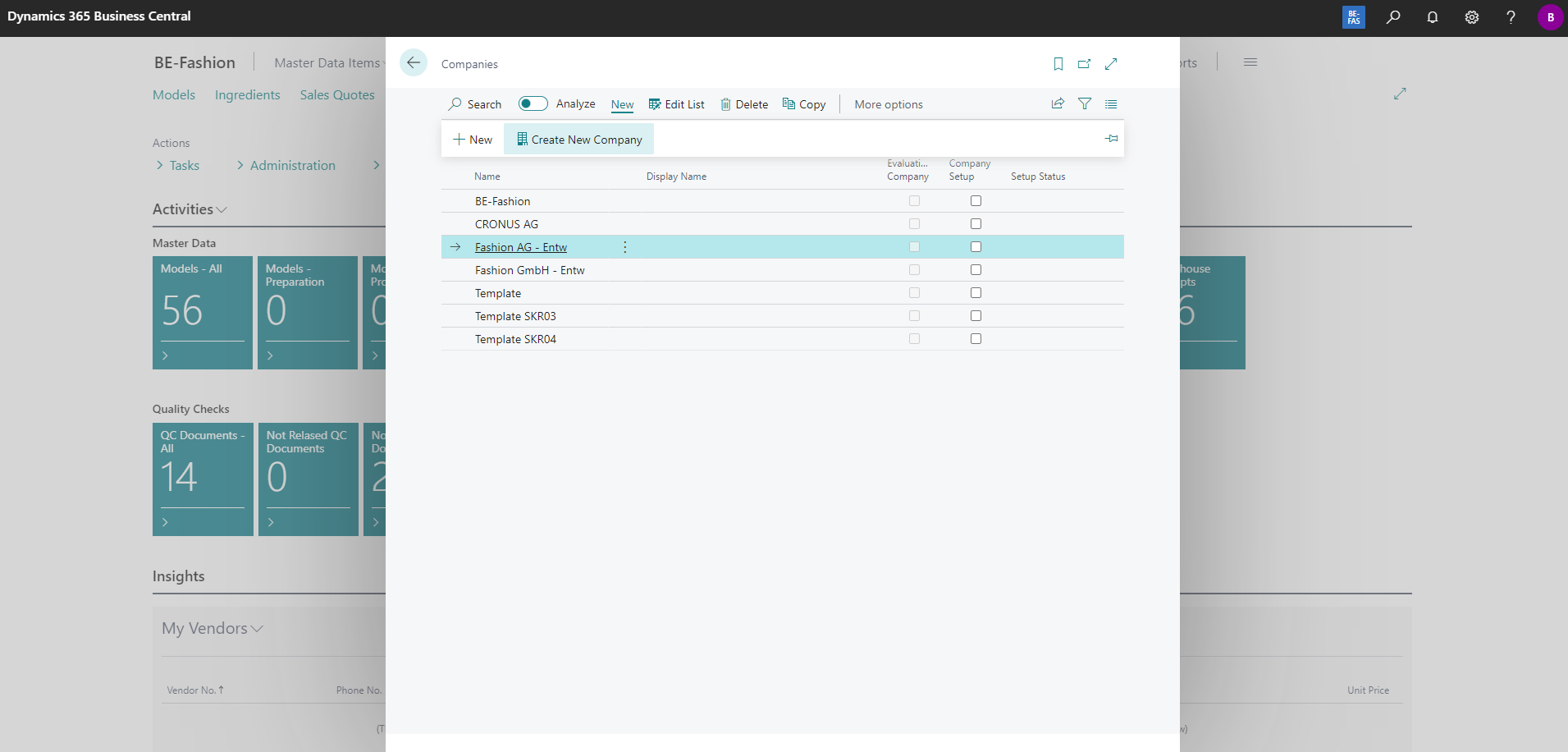
After the wizard opens click on Next:
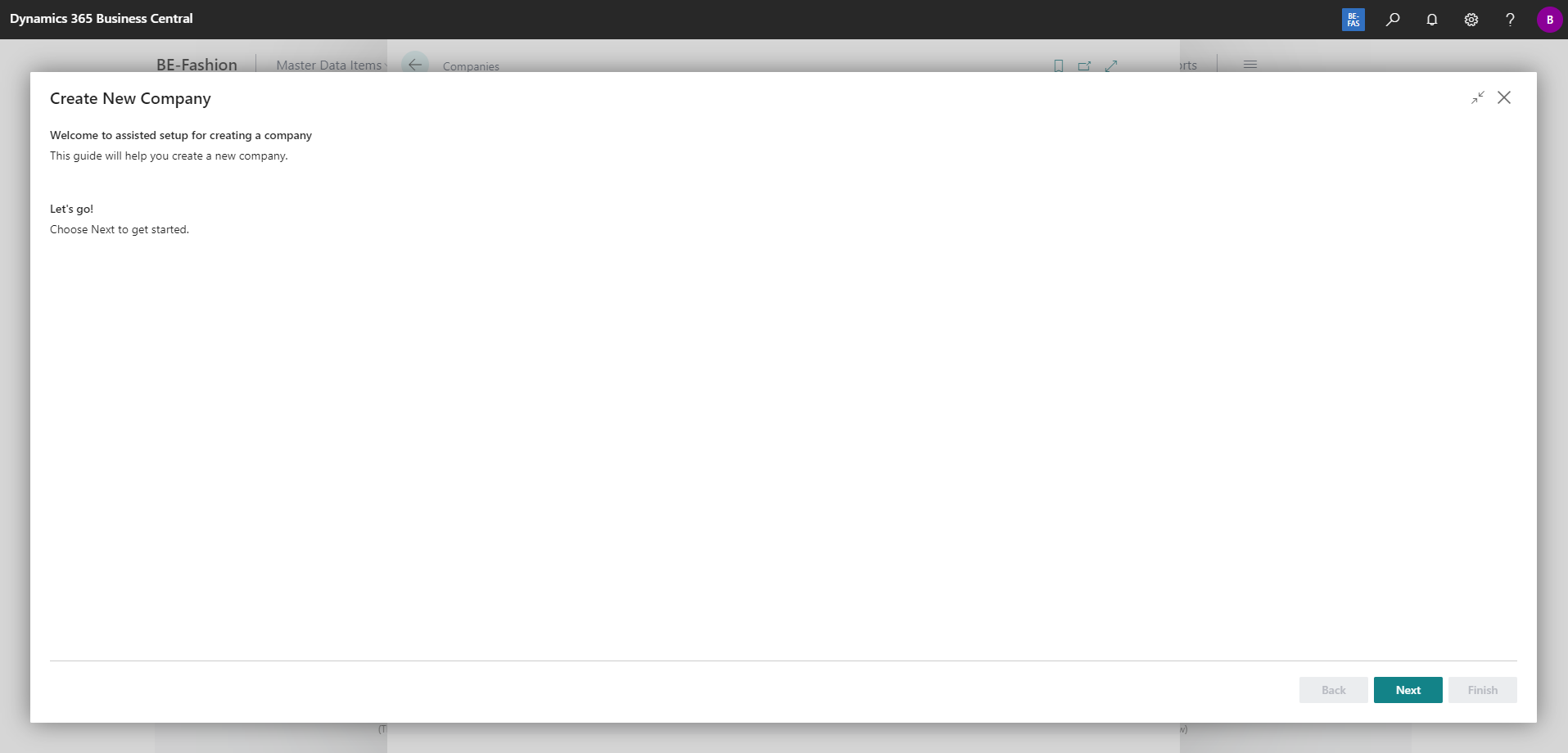
Enter the name of your new company and select "Evaluation - Sample Data"
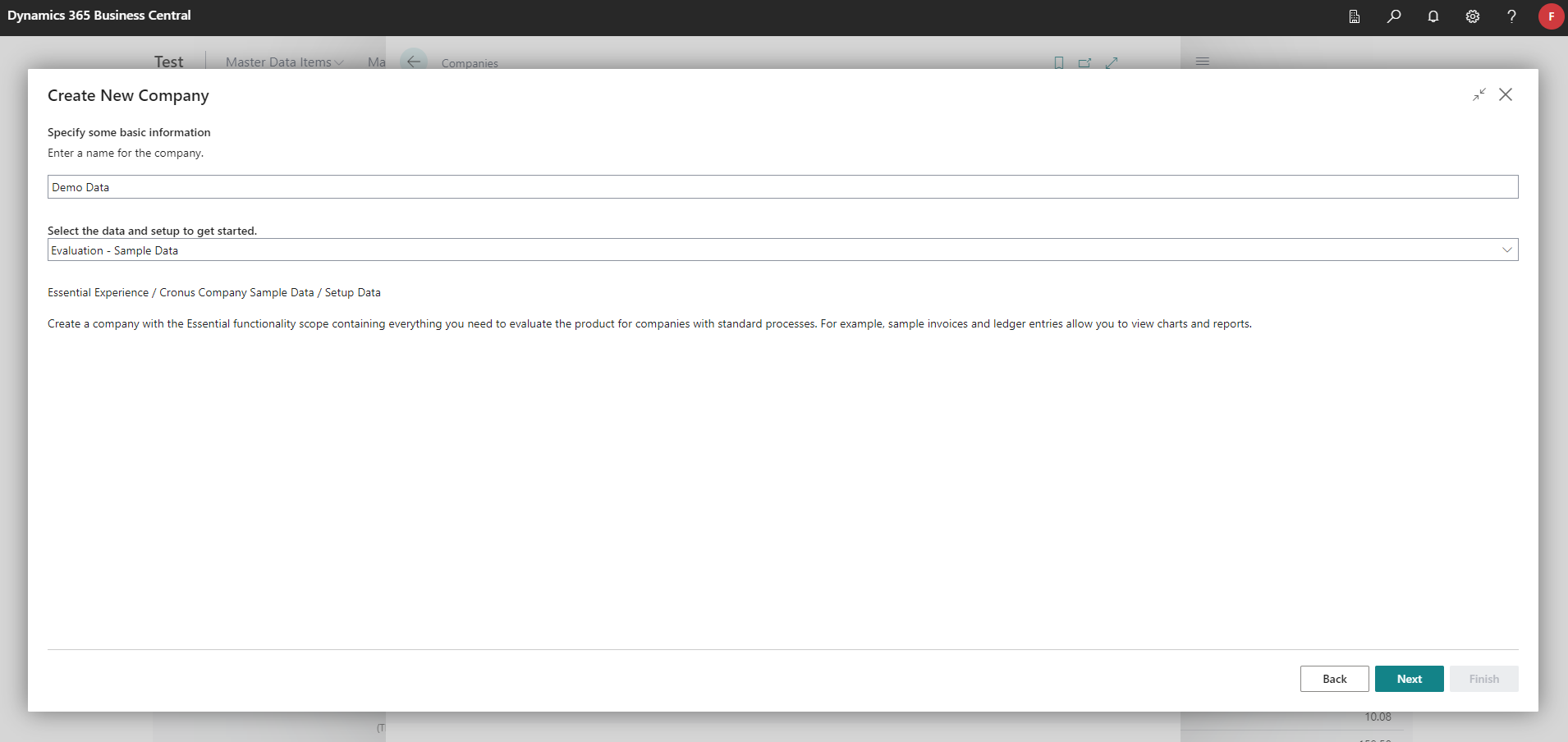
Click "Next" again. On the following page, manage the users. Once the user setup is complete, click on "Next."
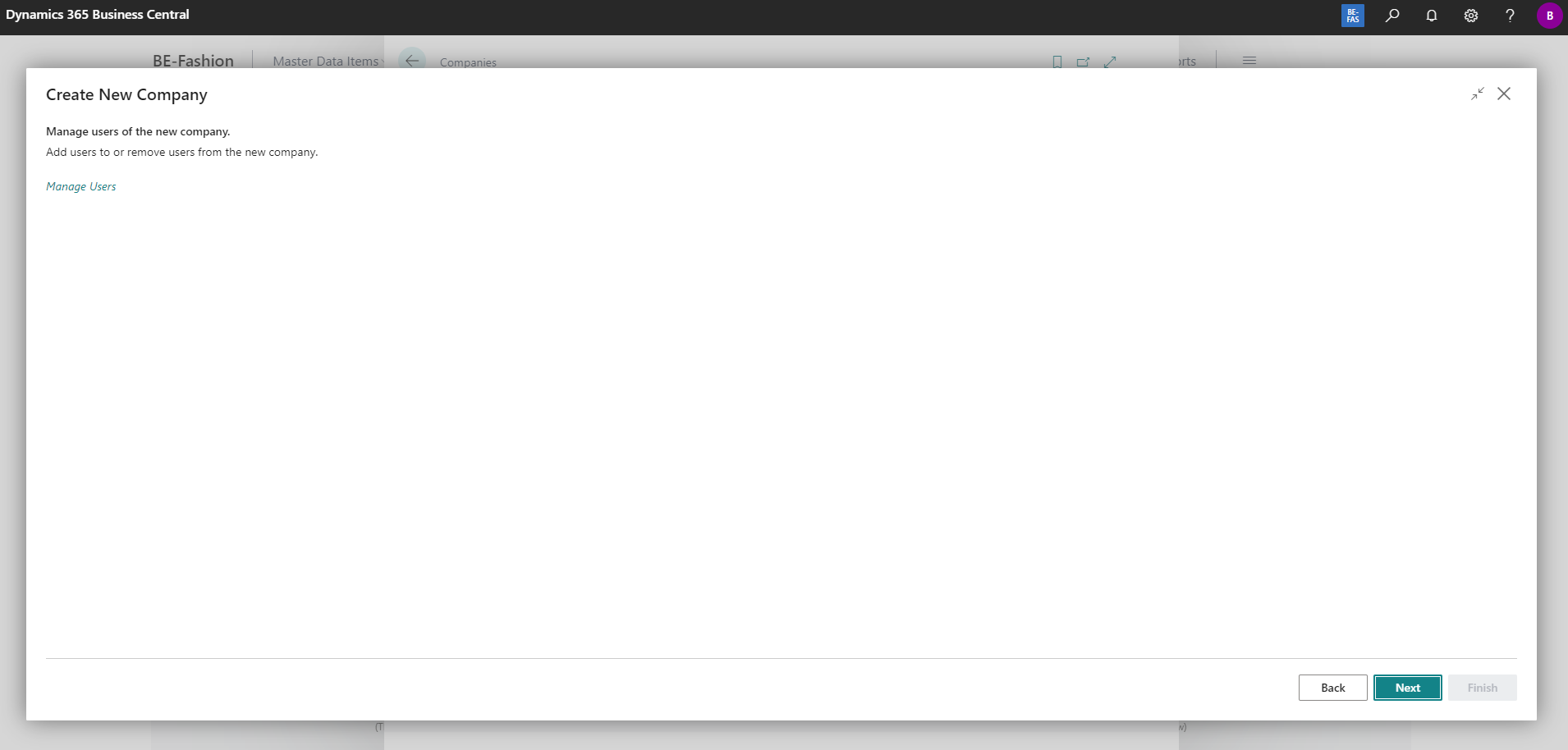
Finally, click on "Finish."
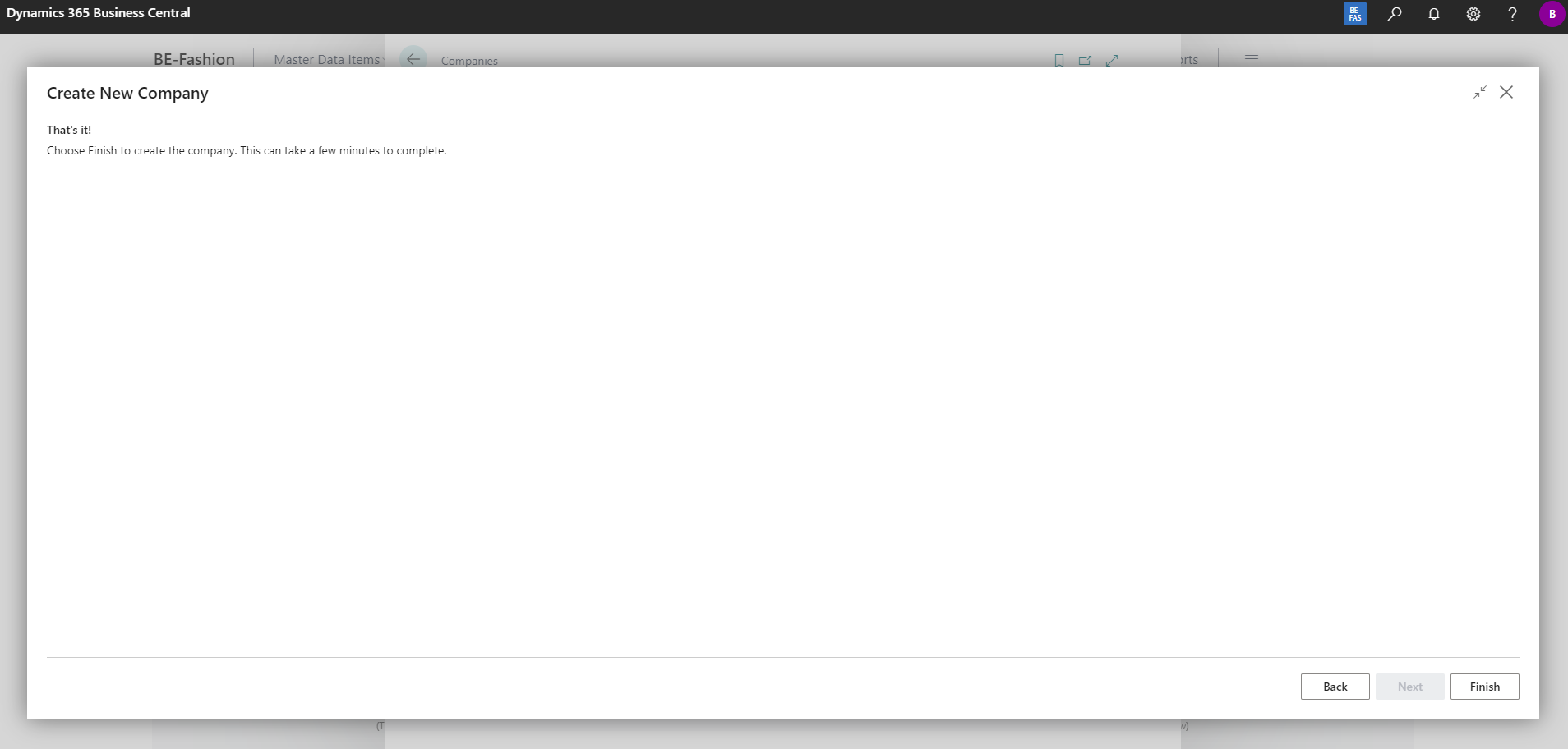
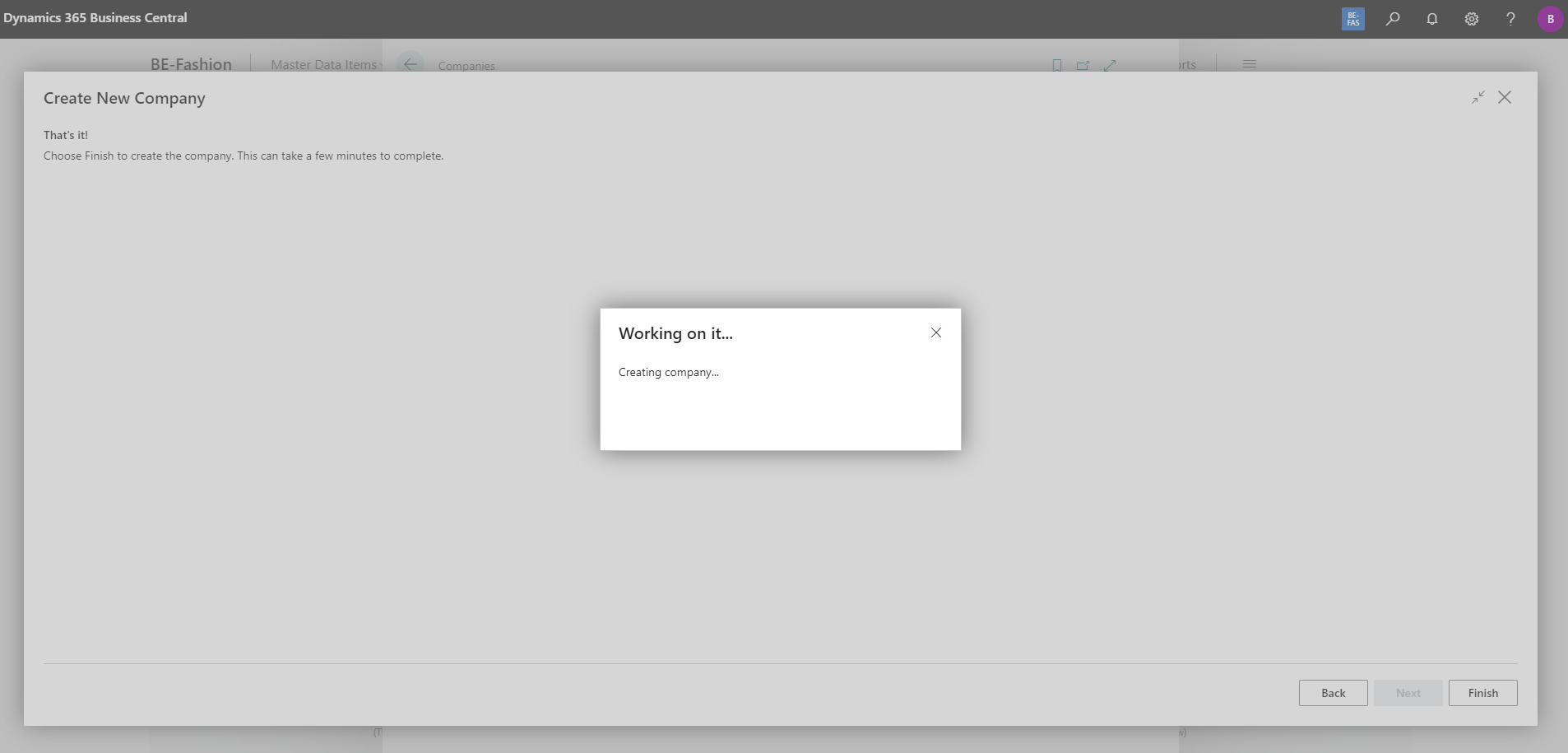
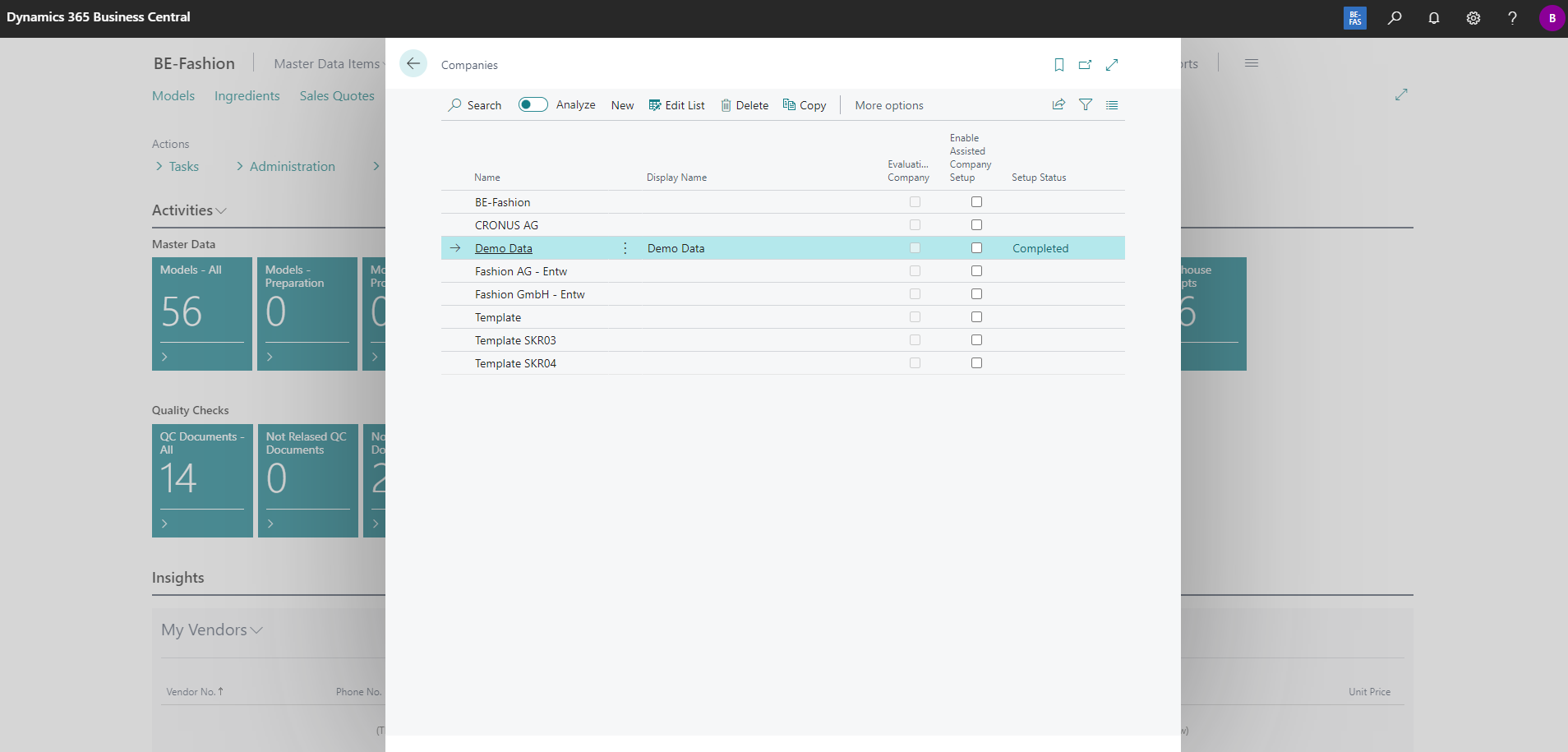
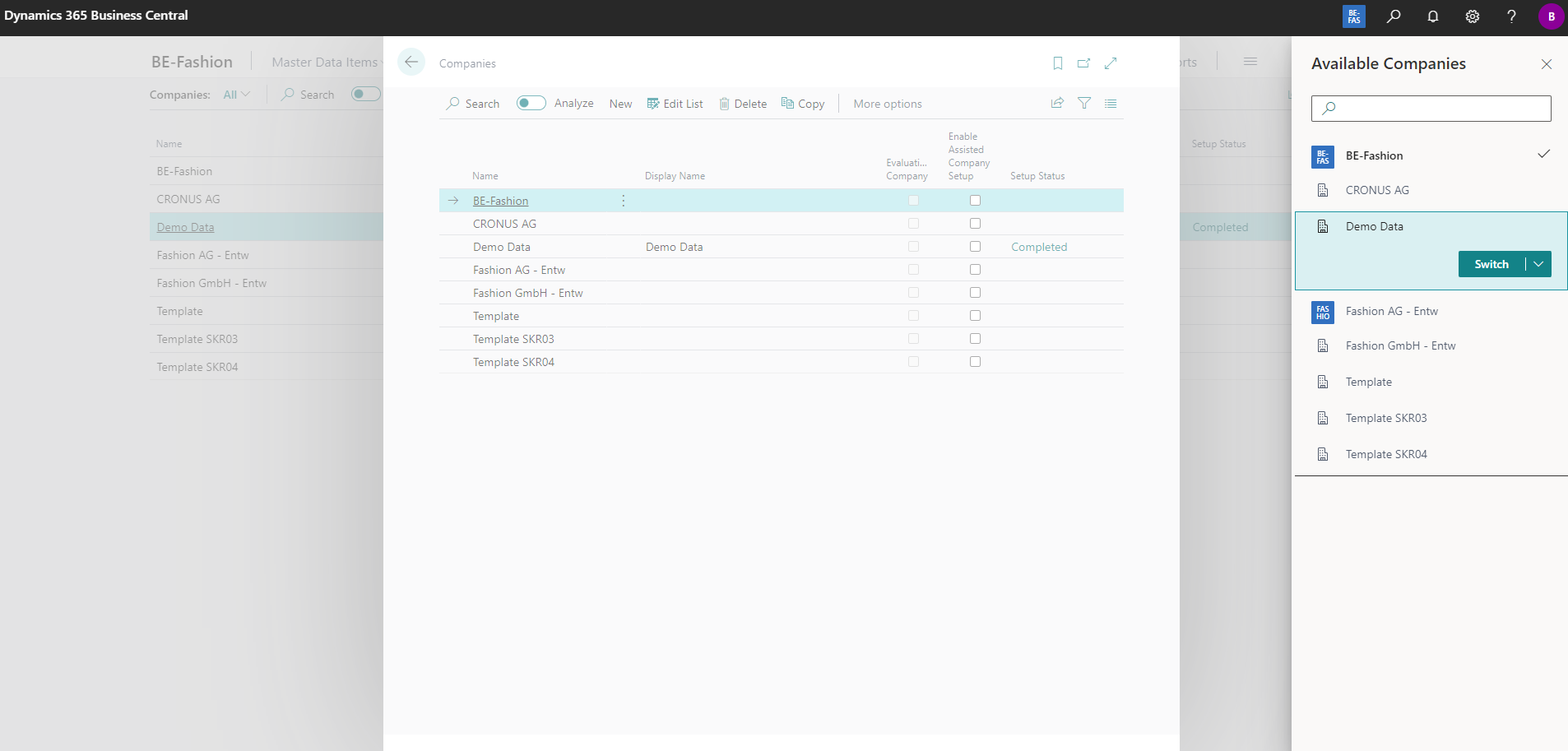
The new company will be created, and you can switch to it by selecting it from the list.
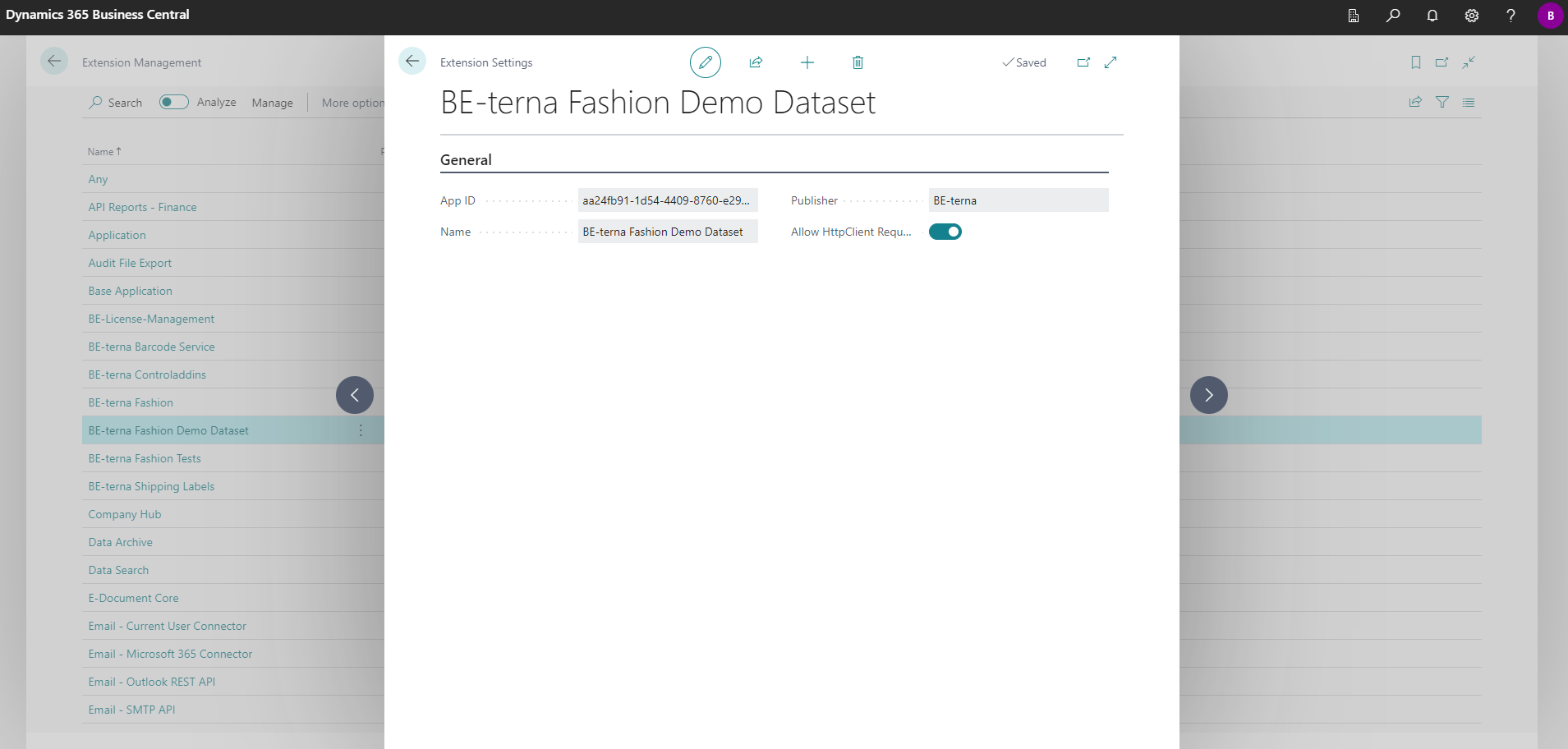
Next, proceed to Extension Management. Navigate to the Fashion Demo Dataset App and enable "Allow HttpClient Requests."
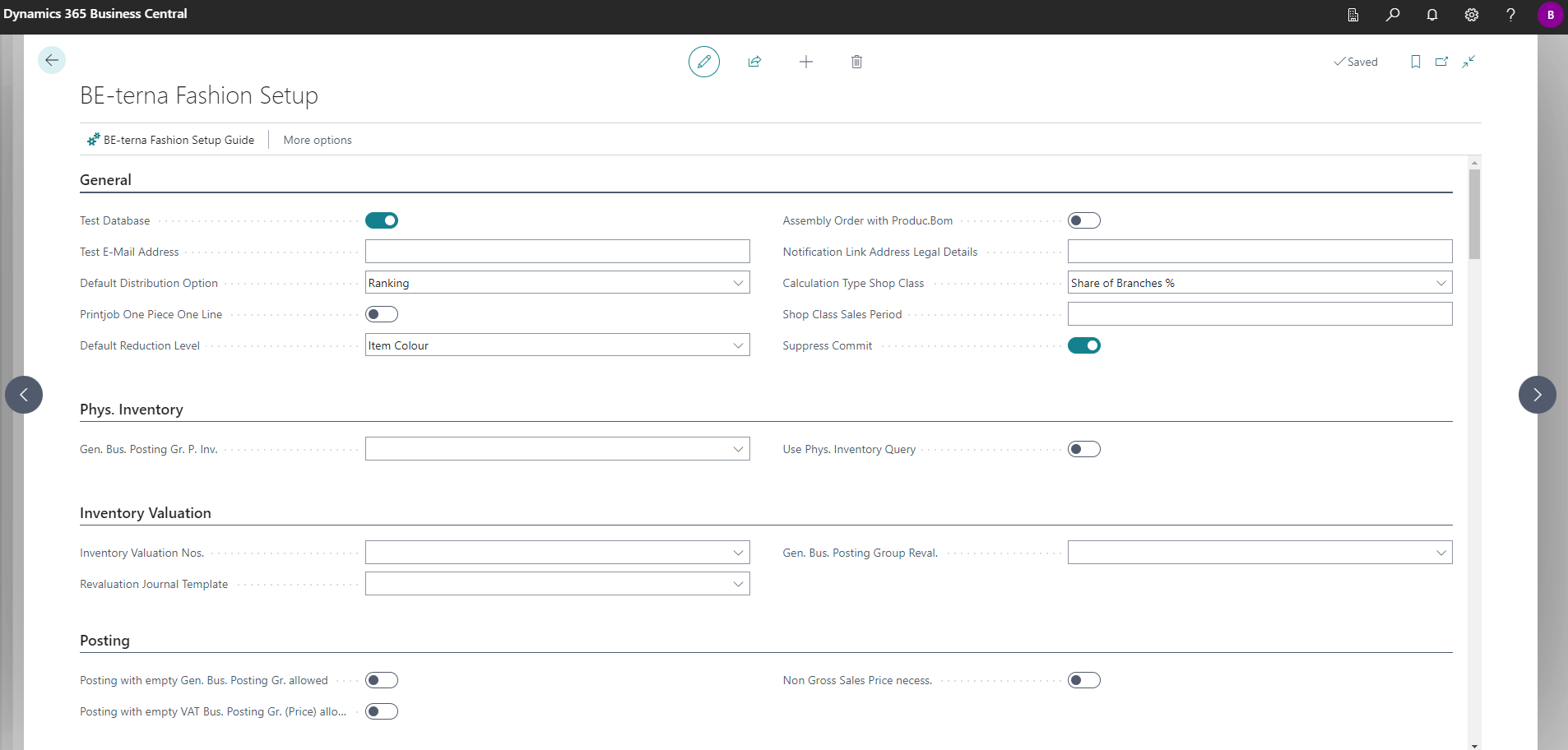
Go to the BE-terna Fashion Setup page and activate the "Test Database" button.
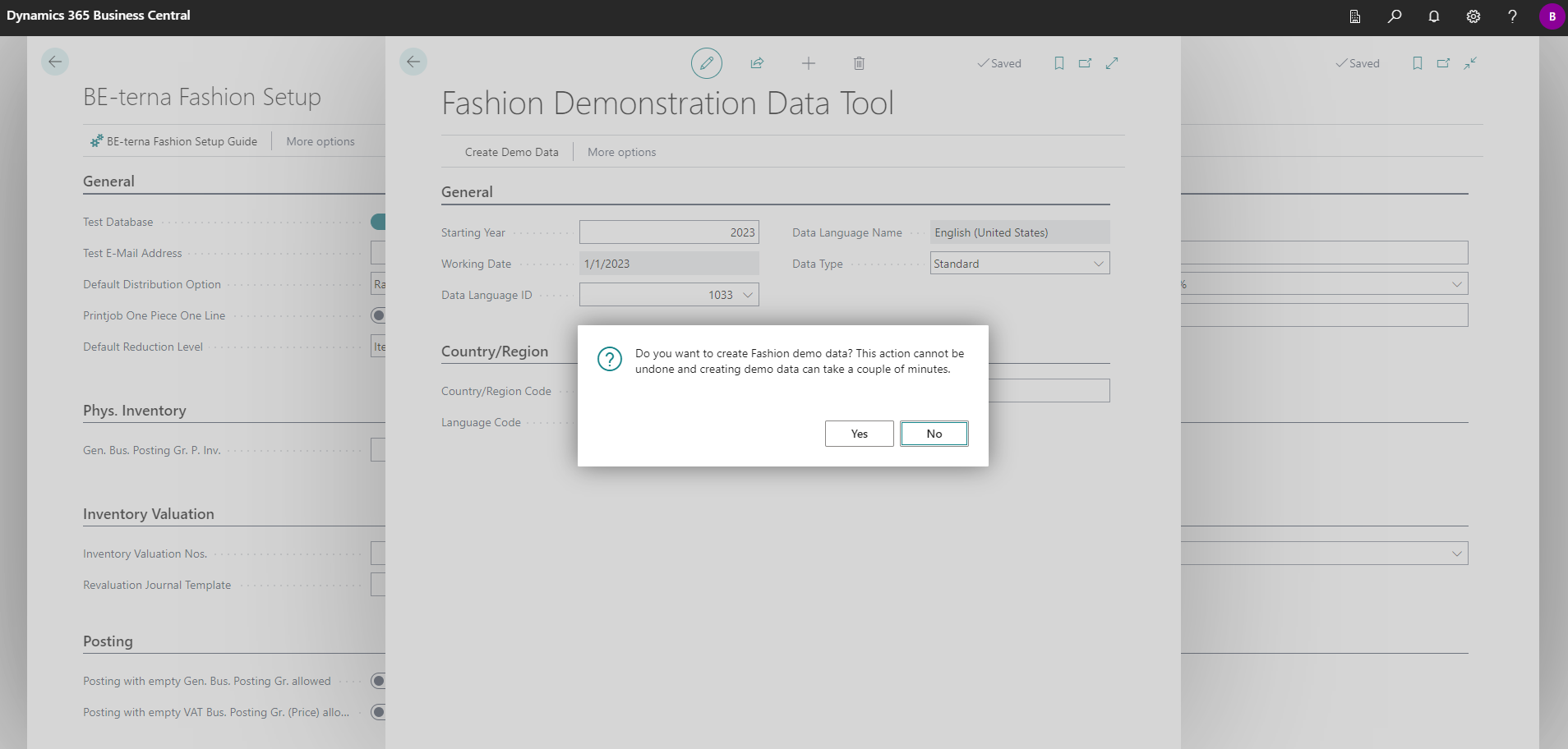
After that, proceed to the Fashion Demonstration Data Tool page. Here, you can modify the default setup for the demo data.
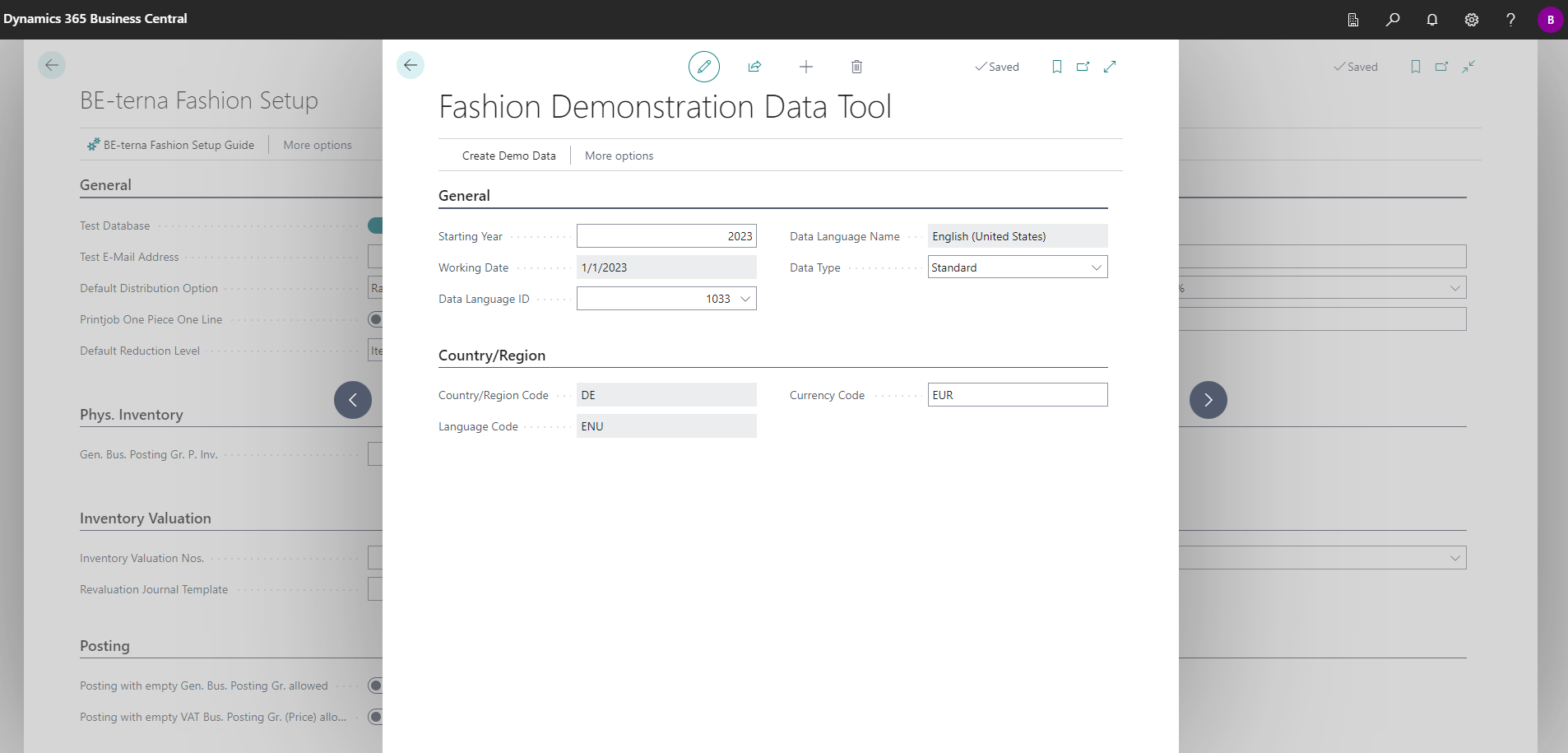
Once the data setup is complete, click on the "Create Demo Data" action. You will be prompted twice to confirm your decision.
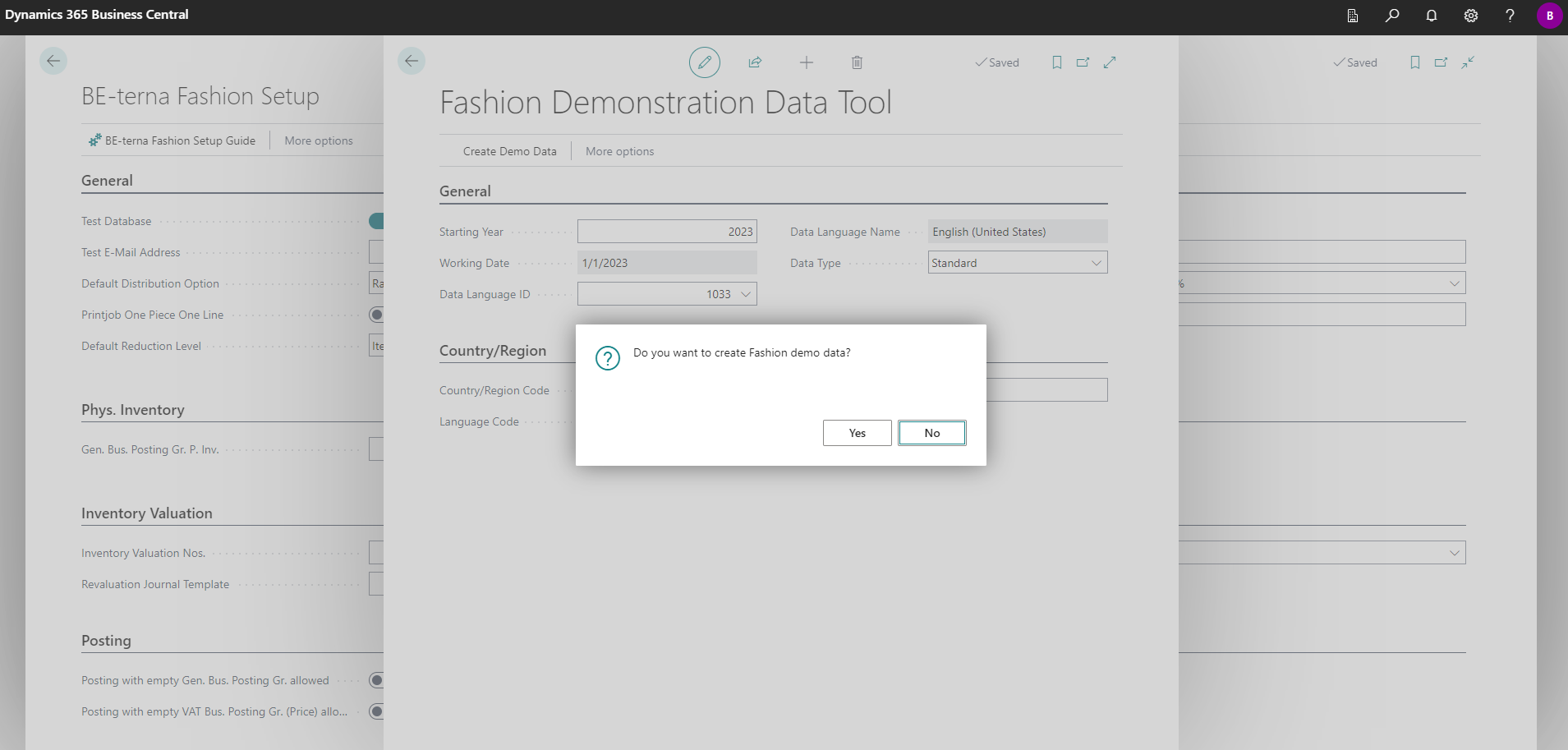
After confirming twice, if everything went well, you should receive the following output:
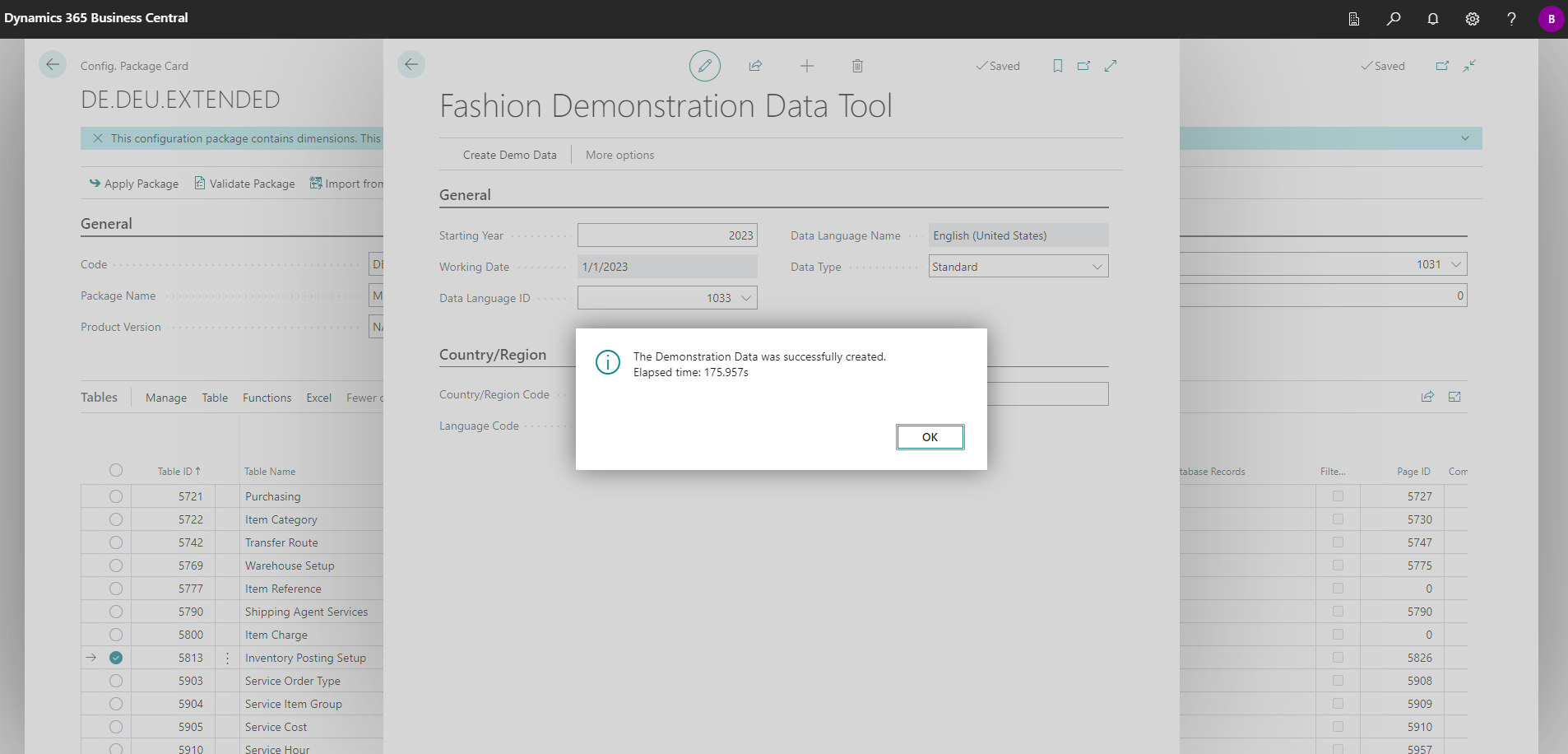
That's it! You can now begin exploring Fashion processes using the data generated by this app.